Settings
Settings is where Twin Check'n is configured for the lab: which Shopify products count as film, what the workflow statuses are, how labels print, what customers are emailed, and more. Most of it is set up once and rarely touched.
Settings is split into tabs. Everyone can open it, but the Notifications and Inbound Shipping tabs, and every secret key, are admin-only.
Each section starts collapsed. Select Expand to open it.
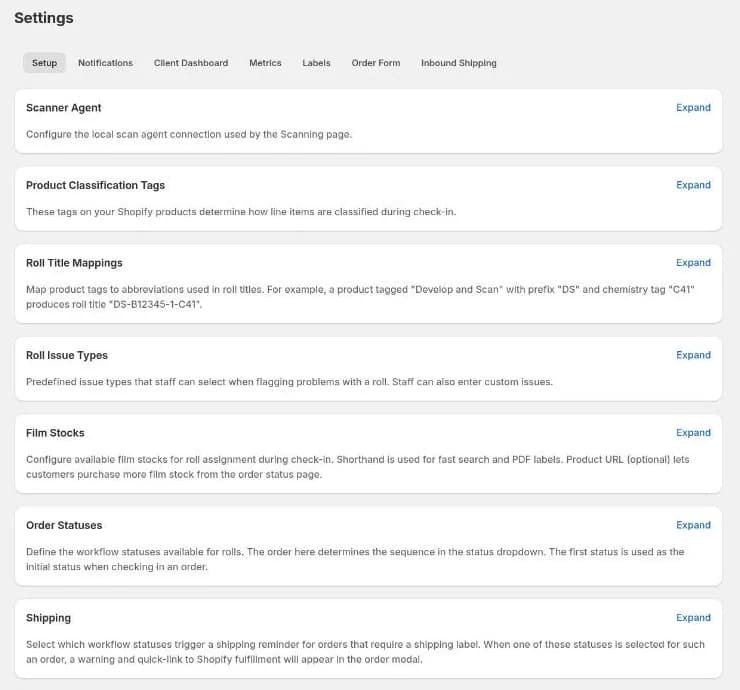
Setup
Scanner Agent
Connects the Scanning page to the local scan agent.
- Use local scan agent on this station: set per computer, and applies immediately. New computers start with it off.
- Agent URL (usually
https://localhost:3625) and API key: shared by every station.
Product Classification Tags
Tags on your Shopify products that tell Twin Check'n what each line item is at check-in:
- Product-as-Service Tags: products that are a film service. Each one becomes a roll.
- Developing / Scanning / Finishing Add-On Tags: add-ons, grouped by the stage they belong to. Each group can have a colour, used for its badges.
- Rush Processing: the tag on the rush product. Select Sync Variants to pull its variants from Shopify, then choose each variant's colour and Label mark (No mark, ! or !!) printed on roll labels.
If check-in says "No rolls found," the products aren't carrying a Product-as-Service tag.
Roll Title Mappings
Turns product tags into the short codes shown on rolls and labels:
- Service Type Mappings: tag → service prefix.
- Chemistry Type Mappings: tag → chemistry, e.g. C41.
- Format Mappings: tag → format name, e.g. 35mm.
- Label Code Mappings: tag or SKU → the code printed on the label.
- Add-on Abbreviations: tag → short code.
Roll Issue Types
The Predefined Issues staff can tick when flagging a roll, e.g. light leak or blank roll. Staff can still type custom issues.
Film Stocks
The list offered for each roll at Check In. Each has a Name, a Shorthand (for fast searching and printed on labels), and an optional Product URL so customers can buy more from their order page. Select Add Film Stock to add one, or Reset to Defaults to restore the built-in list.
Staff can still enter a stock that isn't here as a custom film stock. On the customer dashboard, a customer with any roll on a stock that isn't in this list gets an Only rare stocks filter.
Order Statuses
The workflow statuses, in order. The first status is the one orders start in before check-in. Use the arrows to reorder. For each status you can set:
- A colour, used on badges and dashboard tiles.
- Its Progress stage on the customer's progress bar.
- A Customer description, shown when a customer selects "What does this mean?". Leave it blank to hide that status there.
- Issues that are added automatically when a roll enters it.
Shipping
Tick the statuses that should trigger a shipping reminder. When one of them is chosen for an order that needs a label, the order window warns staff and links straight to Shopify fulfillment.
Bin Storage
Physical shelf bins for finished orders. See Pick Up.
- Number of bins: bins are numbered 1 to this. Leave blank or 0 to turn bins off.
- Orders per bin: target capacity. When every bin is full, orders still go in the least-full one and are flagged.
- Bin-eligible statuses: printing an order form assigns a bin only when the order is at one of these statuses, the point it goes on the pickup shelf. It's a list of ticks rather than a cut-off, because the status list isn't always in shelf order. Shipping orders never get a bin. If none are ticked, printing never assigns a bin. Tick the discard alert status too, or alerted orders end up on the Verify bins tab.
- Release statuses: reaching any of these frees the bin. Tick at least one, or bins never empty.
- Mark orders as (Pick Up page): the status applied when staff hand an order over. Only release statuses are offered. A customer email for this status should use the order trigger mode.
Discarding unclaimed orders
How long an uncollected order waits before it's discarded. See Pick Up for how staff use it.
- Discard alert status: applied once an order has been on the shelf for the alert period. Set up an email for this status under Notifications to warn the customer. Only bin-eligible statuses that don't free the bin are offered.
- Discarded status: applied when staff discard orders. Only release statuses are offered, so discarding always frees the bin.
- Days on shelf before alert (default 30) and Days after alert before discard (default 7): calendar days.
- Send discard alerts automatically: when on, due alerts go out whenever someone opens the Pick Up page. When off, the page lists due orders for staff to review and send.
Until both statuses are chosen, no alerts are sent and nothing is marked ready to discard.
Notifications (admin)
Email Notifications
Customer emails are sent through SendGrid. The How to set up SendGrid panel walks through creating an API key. Then fill in:
- SendGrid API Key: stored encrypted and never shown again. Leave it blank to keep the saved key.
- From Email and From Name: who the email appears to come from.
Status Email Templates
Turn on an email for any status. For each one, choose:
- Trigger mode: when the first roll reaches it, when all rolls reach it, or when the order reaches it (no rolls required).
- Email subject and HTML template. Placeholders are filled in when it's sent:
| Placeholder | Becomes |
|---|---|
{{orderNumber}} | The order number |
{{customerName}} / {{customerEmail}} | The customer |
{{status}} | The new status |
{{rolls}} | The roll numbers |
{{chemistry}} / {{addOns}} | Chemistries and add-on codes on the order |
{{publicNotes}} | The order's public notes |
{{shopName}} | The shop name |
Test Email
Enter an address in Send test email to and select Send Test to check delivery before switching templates on.
Client Dashboard
What customers see when they sign in to view their orders on the storefront.
- Customer Orders Dashboard: the Empty notes placeholder, the Welcome message, and Loading-screen tips (one per line, shown at random).
- Dashboard Theme: the visual theme.
- Progress Bar Stages: the stages on the customer's progress bar. The last is treated as complete. Which status belongs to which stage is set under Setup → Order Statuses.
Metrics
- Turnaround Metrics: each metric has a Label, matches orders by Chemistry suffix or Service prefix, and measures from check-in to its End status. Exclude tags leaves out orders with those product tags, e.g. rush. Choose Calendar days or Business days (and which days count). The results appear on the Dashboard.
- Team Productivity: which statuses credit each of the five actions on Productivity.
- Value Split: how each service's price is divided across the stages that earn it. Each row must total 100%. Backfill pricing (admin) fetches prices from Shopify for orders checked in before value tracking existed.
- Active Roll Configuration: the Active from stage and Active through stage used for the dashboard's active roll counts.
- Fulfillment: Mark order fulfilled in Shopify when it reaches a chosen status. The default is the final status.
- Scanning Station: the status the Scanning page's Mark as … button moves rolls to.
Labels
Pre-printed labels
Tick Pre-printed label mode when the lab is out of roll label stock and is using pre-printed barcode labels instead. While it's on:
- Check-in hides Print Labels and needs a pre-printed label scanned for every roll (see Checking in with pre-printed labels).
- Every scan box also accepts the label number.
A label number can be reused once its order reaches one of the Bin Storage release statuses (such as Picked Up). If none are set, a number is never reused. Untick the box to go back to printed labels. Rolls keep their label numbers, and scanning them still works.
Label layout
The size and layout of roll labels, with a live Preview:
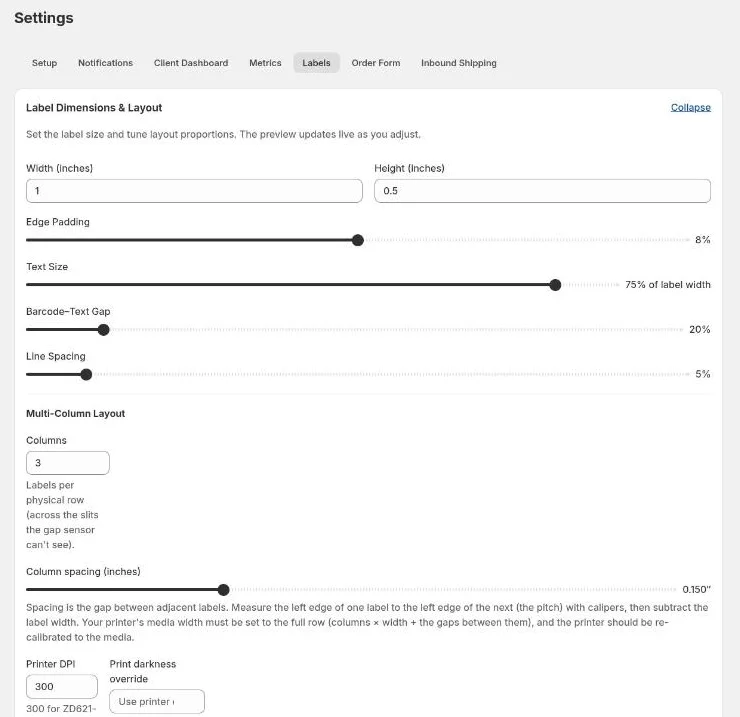
- Width and Height in inches.
- Edge Padding, Text Size, Barcode–Text Gap and Line Spacing.
- Multi-Column Layout: Columns per physical row and Column spacing. To get the spacing, measure from the left edge of one label to the left edge of the next, then subtract the label width.
- Printer DPI (300 for a ZD621-300dpi).
- Print darkness override: leave it blank to use the printer's own setting (recommended).
- Label Text: two lines of text printed on every label.
Reset to Defaults restores the standard layout. For printing problems, see Label printing.
Order Form
Order Form Checklist
A short checklist printed in the form's bin box, listing the extra jobs an order needs before it can leave. Each rule has an emoji, used as the bullet for its lines. Use the arrows to set the order they print in.
- Add tag rule: choose an add-on product tag. Every add-on on the order
with that tag is listed by its product name. For example, one
negative-returnrule prints Archival Sleeves on one order and Rolled Up on another. An add-on matching two rules is listed under the first. - Add shipping rule: one line, with your own wording, printed only when the order ships. There can be one shipping rule.
- Bullet size: the size of the emoji bullets, 10–32px. The product names stay the same size.
The checklist appears where the template uses {{checklist}}. The default
template puts it in the bin box, under the order number and bin. A template
saved before the checklist existed doesn't have it: add {{checklist}}
yourself, or select Reset to default under the template.
Order Form Template
The HTML template used by Order Forms, one page per order (a long order runs onto extra pages). Add a Logo Image URL, edit the HTML Template, and select Refresh preview to check it. Reset to default restores the original.
| Placeholder | Becomes |
|---|---|
{{orderNumber}} | Order number |
{{bin}} | The order's bin, SHIP for a shipping order, NOT READY before it's bin-eligible, or a dash when bins are off |
{{checklist}} | The Order Form Checklist for this order (empty when nothing applies) |
{{customerName}} / {{customerEmail}} / {{customerPhone}} | The customer |
{{shippingAddress}} | Address block, empty when not shipping |
{{rollsTable}} | A table of rolls: number, film stock, format, add-ons, issues |
{{barcode}} | A barcode of the order number |
{{publicNotes}} / {{privateNotes}} / {{shopifyOrderNotes}} | Notes |
{{date}} | Today's date |
Inbound Shipping (admin)
Setup for Inbound Labels.
- Redo connection: tick Enable inbound shipping labels, then add the Store ID and API secret. The panel explains where to find them. Give the token the Shipping scope. Despite the name, Inbound shipments is the wrong one.
- Address standardization (USPS) (optional): with a USPS Client ID and Client secret, addresses are corrected against USPS before any carrier sees them. That avoids labels being refused over things like "Lane" vs "LN". USPS bills per lookup, with a $10 monthly minimum.
- Which products trigger a label: product tags, e.g.
mail-in. One label is bought per unit. - Box sizes: one preset per box a customer can buy, with weight and dimensions. Items are matched by SKU first, then product tag, then the preset marked as the default.
- Ship to: the lab's address (US only).
- Where the form lives: the Storefront form page URL where you've added the Inbound Label Form block. If you leave it blank, the app-hosted page is used instead, which looks less trustworthy in an email.
- Carriers and printing: which carriers are offered (a carrier only appears if it can rate every box), which formats to generate (Letter and/or 4×6), and how long the form link is valid (336 hours = 14 days).
- Emails: the subject and HTML body of the "give us your address" email
(it must include
{{formUrl}}) and of the label email. Both use the SendGrid settings from Notifications.