Dashboard
The Dashboard is the first page you see after logging in. It answers four questions at a glance: how many rushes the counter has taken today, how much work is in the lab, where it's sitting, and how fast it's moving.
Counter rushes today
The first card counts the rush rolls sold at the front counter (Shopify POS) since midnight, split into 1-Day and 3-Day. Check it before accepting another rush at the counter. There's no limit stored in the app. Whether to take one more is your call.
- It updates by itself every minute while the page is open, and when you come back to the tab. Select Refresh to update it now.
- Refunded or removed rush items and cancelled orders don't count.
- Rush FF counts as 3-Day, and Rush Dev Only as 1-Day. Any rush product it can't place shows as Other rush under the counts.
- Online orders aren't included, only POS sales.
| Message | What it means |
|---|---|
| Set a rush processing tag in Settings to start counting | An admin needs to fill in Settings → Setup → Product Classification Tags → Rush Processing. |
| Couldn't reach Shopify, showing last count | The last update failed. The numbers are from the time shown. |
| Your staff session has expired | Reload the page and log in again. |
Active roll counts
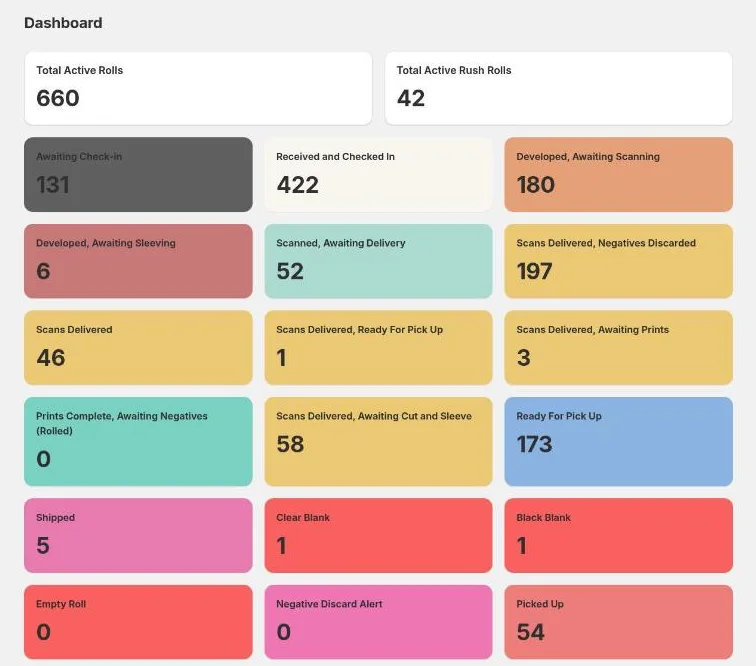
The two cards below it are:
- Total Active Rolls: every roll that's between check-in and completion.
- Total Active Rush Rolls: the active rolls that carry a rush add-on.
What counts as "active" is set in Settings → Metrics → Active Roll Configuration. By default it's everything from Received and Checked In up to, but not including, the final stage. Rolls still awaiting check-in and finished rolls aren't counted.
Status tiles
Below the counts there's one tile per roll status, showing how many rolls are in it. The tile colours come from the status colours in Settings.
Select a tile to open Orders filtered to that status.
Turnaround Times
Each card shows the average number of days an order type takes, for example from check-in to scans delivered. The arrow compares it with the previous period:
- Green ↓: faster than before.
- Red ↑: slower than before.
Select any turnaround card to switch the period between the last 7, 14, 30 and 60 days.
If you see "No turnaround metrics configured," an admin needs to add them under Settings → Metrics → Turnaround Metrics.
Team Productivity
At the bottom is a short summary of who's done what. Select Open Productivity for the full Productivity report.