Pick Up
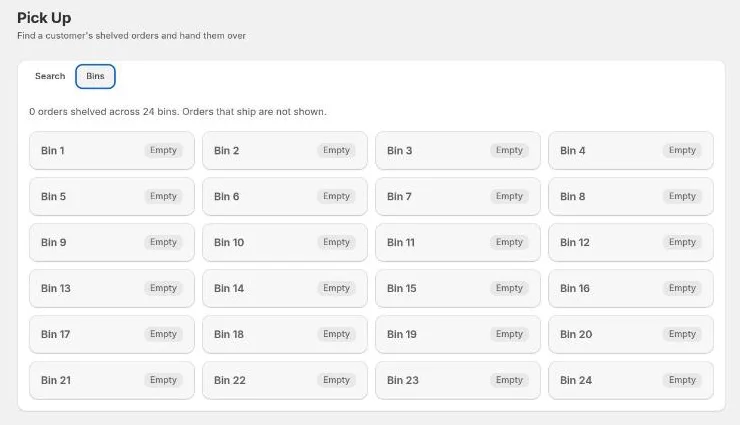
Pick Up is for handing finished orders to a customer at the counter. Find everything they have waiting, tick what they're taking, and mark it picked up. That also frees the bins those orders were using. The Bins tab shows what's on every shelf and which orders have waited too long, and the Verify bins tab lists any bin that needs checking by hand.
Handing orders to a customer
- On the Search tab, type the customer's name, email or an order number, or scan one of the order's rolls (printed or pre-printed label).
- Their shelved orders appear grouped together, with the bin each one is in and how many days it has been on the shelf.
- Tick the orders they're collecting. Tick the customer's heading to select all of them.
- Tick Don't email customers if they shouldn't get the pick-up email.
- Select Mark picked up. The button shows the status it applies.
A green banner confirms which orders were marked and that "their bins are now free."
What the result banners mean
- Already picked up, left unchanged: those were done before. Nothing happened.
- Failed: those orders stay ticked so you can try again.
- Changed in Shopify since check-in, so not handed over: select Sync order, sync it, then mark it picked up again. See Syncing with Shopify.
- Confirm before marking picked up: some rolls are further along than the pick-up status. Select Mark picked up anyway if that's right.
- The status changes saved, but some follow-up steps did not: the hand-off is recorded, but something like the email or Shopify update didn't complete. The banner says which.
The Bins tab
Every bin, numbered like the shelf labels, with the orders in it and how many days each has been on the shelf. Orders that ship aren't shelved, so they never appear here. A bin with more orders than it's meant to hold shows Over configured count.
Orders that haven't been collected change colour as they age:
| Looks like | Meaning |
|---|---|
| No colour | On the shelf, nothing due yet. |
| Amber, Discard on … | The customer has been sent a discard alert. The badge shows the date it can be discarded. |
| Red, Ready to discard | The discard date has passed. |
Unclaimed orders: alerts and discards
An order that sits on the shelf too long goes through two steps. The number of days for each is set by an admin (30 and 7 by default). Days are calendar days, so an order shelved at 5pm counts as one day on the shelf the next morning.
1. Discard alert
When an order has been on the shelf for the alert period, it's due a discard alert: it moves to the alert status, and the customer gets that status's email if one is set up.
- If Send discard alerts automatically is on in Settings, due alerts go out whenever someone opens the Pick Up page, and a banner says "Sent automatically".
- Otherwise a banner says how many orders are due. Select Review & send, untick any that shouldn't be alerted yet, and select Send alerts.
An alert can also be sent by hand. Changing an order to the alert status anywhere in the app starts the same countdown.
To hold an order, for example when a customer has called to say they're coming, move it back off the alert status. It stops being amber or red and can't be discarded. It has still been on the shelf past the alert period, though, so it's due an alert again straight away. Untick it in Review & send until the customer comes in. With automatic alerts on, it's re-sent the next time someone opens the page.
2. Discard
Once the discard period has passed since the alert, the order turns red. On the Bins tab, select Discard…. Every order that's ready is listed and ticked. Untick any you can't find on the shelf or that a customer has come for, then select Discard. The ticked orders move to the discarded status and their bins are freed.
If you see "Discard alerts are off until they're set up," an admin needs to choose the alert and discarded statuses in Settings → Setup → Bin Storage.
The Verify bins tab
This tab appears only when an order is holding a bin it doesn't qualify for, with a count of how many. It happens when, for example, an order is changed to requires shipping after its bin was assigned, or its status is moved back before the shelf. The app never clears a bin on its own, so each one waits here for someone to check the shelf. Orders on this tab don't get discard alerts.
For each order, look in the bin, then choose:
| Button | When to use it |
|---|---|
| Not in bin — clear | It isn't there. The bin is freed. |
| It's in the bin — keep | It's there and should stay. It's kept. |
| In bin, waiting to ship — keep | A shipping order that's sitting in the bin until it goes out. It's kept. |
| Customer is picking up | A shipping order the customer will collect instead. It becomes a pick-up order and stays in its bin. |
When nothing is left, the tab says "Every bin checks out."
How bins work
- An order gets a bin when its paper order form is printed and it's ready for the shelf: it isn't being shipped, and its status is one of the bin-eligible statuses. Otherwise the form prints SHIP or NOT READY instead of a number.
- Reprinting the form keeps the same bin.
- A customer's orders share a bin when possible, matched by email and then by name.
- When every bin is full, new orders go into the least-full bin and get flagged.
- The bin is freed when the order reaches a release status, such as the pick-up status or the discarded status.
Admins set the number of bins, their capacity, the bin-eligible and release statuses, the pick-up status and the discard rules in Settings → Setup → Bin Storage. If you see "No pick-up status is configured" or "No bins configured," that's where to fix it.