Orders
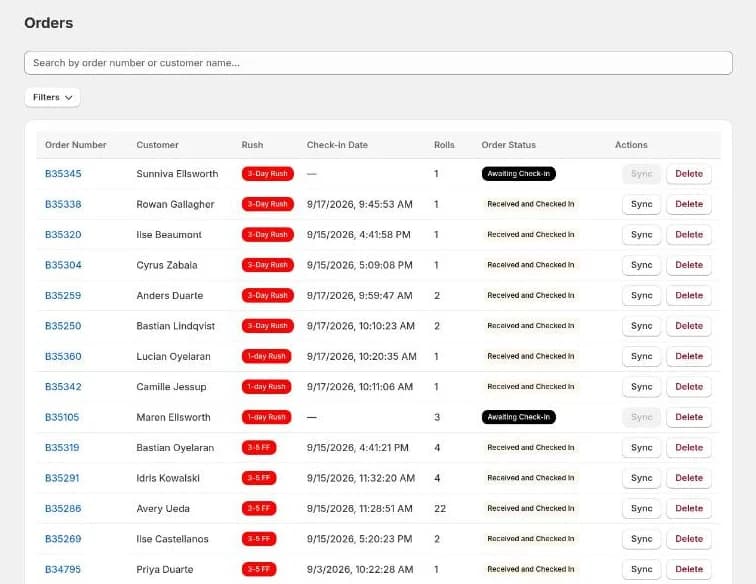
Orders is the master list of every order Twin Check'n is tracking. From here you can find any order, see every roll on it, change statuses, write notes, reprint labels, and keep the order in step with Shopify.
Finding an order
Type in Search by order number, customer, or roll to narrow the list as you type. Scanning a roll label, printed or pre-printed, finds its order. Open Filters to narrow it further:
| Filter | What it does |
|---|---|
| Filter by status | Only orders whose order status matches. |
| Filter by roll status | Only orders with at least one roll in that status. |
| Sales channel | Online Store, Point of Sale or Other channels (draft orders, marketplaces, apps). All channels turns it off. |
| Filter by date | Orders created, or that reached a given status, in a date range. |
| Date scope | Whether the date filter looks at the order's date or each roll's date. |
| Service type / Add-ons / Chemistry / Issues | Tick values to filter by them. Match all requires every ticked value; Match any requires at least one. |
A menu with more than eight values, such as Add-ons, has a search box at the top. Type part of a name to shorten the list. Anything you've already ticked stays ticked even when the search hides it.
An order shows up under a sales channel once Twin Check'n knows where it came from. Very old orders may only appear under All channels until someone opens them.
The list shows the order number, customer, rush, date, number of rolls and order status. Use Previous and Next at the bottom to page through.
Rush orders come first
Without any sorting, rush orders sit at the top of the list, in the priority order of the rush types in Settings → Setup → Product Classification Tags → Rush Processing. Non-rush orders follow, newest first. Once an order reaches the final status it loses its rush priority and drops back among the rest. Select the Rush column heading to sort by rush on purpose.
Filtering examples
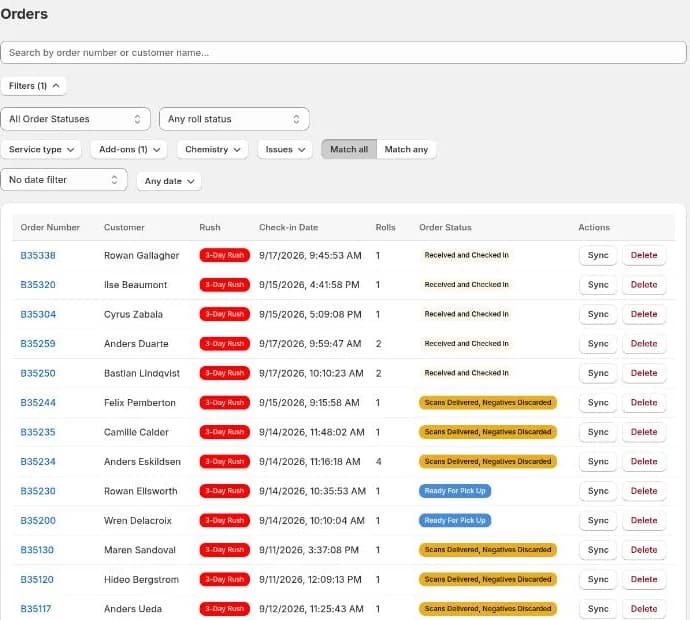
Rush is an add-on, so rush orders are found with the Add-ons filter. It lists every rush type on your rolls, e.g. Rush — 1-day Rush, Rush — 3-Day Rush and Rush FF — 3-5 FF. The number next to Filters shows how many filters are on. To take one off, open its menu and select Clear.
Every 3-Day Rush order
- Select Filters.
- Open Add-ons and tick Rush — 3-Day Rush.
Every rush order of any kind: in Add-ons, tick all the rush types. Ticks in the same menu mean any of these.
Rush orders waiting to be scanned. Use this to plan the scanning queue.
- In Add-ons, tick every rush type.
- Set Filter by roll status to Developed, Awaiting Scanning.
The list now shows rush orders with at least one roll waiting at the scanner.
1-day rushes checked in today. Use this to check nothing was missed at the counter.
- In Add-ons, tick Rush — 1-day Rush.
- Set Filter by date to Reached: Received and Checked In.
- Open the date button and pick today.
To see orders by the day they were placed instead, choose Order Created.
Black-and-white rush rolls. This combines two roll details with Match all:
- In Add-ons, tick the rush types.
- In Chemistry, tick BW.
- Make sure Match all is selected.
With Match all, one roll has to be both rush and BW. Switch to Match any and the list shows orders with a rush roll or a BW roll, which is much broader.
Rush rolls with a problem
- In Add-ons, tick the rush types.
- In Issues, tick the issues you're looking for, e.g. light leaks.
- Leave Match all selected.
These are the rush rolls that may need a note or a call to the customer before they go out late.
The order window
Select an order number to open it.
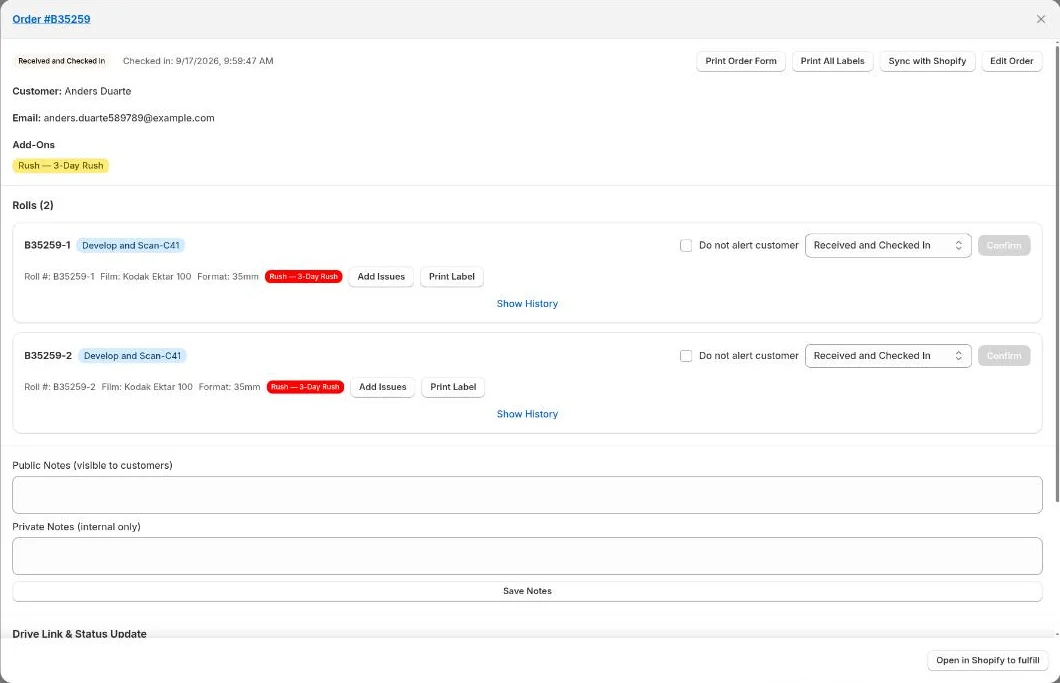
The top of the window shows:
- The order status, sales channel, Changed in Shopify (if it applies), and the Bin it's shelved in.
- When it was Checked in.
- The customer's name, email and the order notes from Shopify.
- The add-ons on the order.
The buttons across the top are:
- Print Order Form: prints this order's paper form. Printing also assigns a bin if the order is ready for the shelf. If it isn't, the form prints NOT READY in the bin box and a warning says so. Reprint it once the order is ready. See Order Forms.
- Print All Labels: reprints every roll label.
- Sync with Shopify: see below.
- Edit Order: opens the full-page editor (below).
- Open in Shopify to fulfill: opens the order in Shopify admin.
Notes
- Public Notes (visible to customers): shown on the customer's order dashboard.
- Private Notes (internal only): staff only.
Drive Link & Status Update
Use this section when an order's scans are ready:
- Paste the scans folder into Drive Link (visible to customers). The Drive link button next to it opens it so you can check it.
- Choose the new Status.
- Leave Update all rolls and order ticked to move every roll with it.
- Tick Do not alert customer if this change shouldn't trigger an email.
- Save. You'll see "Drive link saved and status updated."
If the order Requires Shipping and you pick a status that's set to need a label, a warning reminds you to buy and print the label in Shopify first. Select Open in Shopify to Fulfill to do that.
Rolls
Each roll has its own card with its roll number, film stock, format and add-ons.
- Change one roll's status: choose it in the roll's Status menu and select Confirm. Tick Do not alert customer to skip the email.
- Issues: select Add Issues or Edit Issues, toggle any Predefined Issues, or type a Custom issue and select Add. Then select Save Issues.
- Label #: the roll's pre-printed label, if it has one. Select Add or Edit, scan or type the label, and select Save. Save it empty to clear it. The Shopify tag is updated to match.
- Print Label: reprints this roll's label.
- Show History: every status change, who made it and when, plus any scan agent activity.
Moving a status backward
If you pick a status that's earlier than the roll's current one, the app asks you to confirm with Move backward. That's because:
- The order's own status won't move back by itself.
- A customer email set up for that earlier status may be sent again.
- Productivity and turnaround numbers for the later stages change.
Syncing with Shopify
When an order is edited in Shopify after check-in (a roll added or removed, an add-on changed), Twin Check'n's copy no longer matches what the customer paid for. The order is marked Changed in Shopify and work on it is paused. Status changes, notes and pick-up all ask you to sync first.
- Select Sync on the list, or Sync with Shopify in the order window.
- Review the differences it lists: New rolls, Removed rolls, Updated roll details, and new or removed add-ons.
- Choose a Film stock and Starting status for any new rolls, and reassign add-ons if asked.
- Optionally tick Also update status as part of this sync.
- Select Apply Changes. The badge disappears.
If the order already matches Shopify, you'll see that the warning was out of date and can select Continue.
Admins only: when an order genuinely can't be synced (for example it was deleted in Shopify), select This order can't be synced, enter a Reason, and bypass it. The bypass is recorded under your name and only covers the current difference. If Shopify changes the order again, it's blocked again.
Edit Order
Edit Order opens the same editor as Sync on a full page, so you can change rolls, film stocks and add-ons directly. Select Save changes when you're done, or Orders at the top to go back without saving.
The film stock boxes here and in Sync are searchable, like the one on Check In. Type a name that isn't in the list to use it as a custom film stock with its own label shorthand.
Deleting an order
Delete on the list removes the order and all its roll data from Twin Check'n and removes its tags from the Shopify order. You'll be asked to confirm. It can't be undone.