Scanning
Scanning is the scanner station's page. Scan a roll to open it, check its details, note any problems, and mark it scanned with one tap. At stations set up with the local scan agent, marking a roll scanned also moves the scanner's image files into that roll's folder, so nobody renames files by hand.
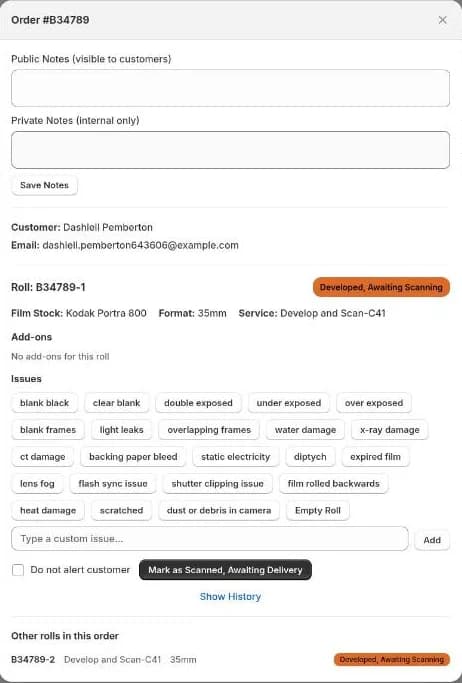
Scanning a roll
- Choose a view at the top right:
- Single roll: opens just the roll you scan.
- Whole order: opens every roll on that order, so you can work through them in turn.
- Scan the roll label, or type its number (e.g.
B12345-1) into Roll number, and press Enter or select Look Up Roll. A pre-printed label works too. - The order window opens with the Customer, Email and Order Notes, and the roll's Film Stock, Format, Service and Add-ons.
- Record anything you notice (see below).
- Select Mark as … to advance the roll. The button names the next status, e.g. Mark as Scanned, Awaiting Delivery.
The status the button moves rolls to is set in Settings → Metrics → Scanning Station.
Issues and notes
- Issues: toggle any predefined issue, or type a Custom issue and select Add. Then select Save Issues. Tick Do not alert customer if the change shouldn't email them.
- Public Notes (visible to customers) and Private Notes (internal only): select Save Notes.
- Show History: every status change on the roll, plus the scan agent's file moves.
With the local scan agent
The scan agent is a small program on the scanner computer. It moves images from
the scanner's export folder to the roll's folder on the NAS and names them
{order}-{roll}-{image}, e.g. B31009-1-1.jpg. It's built never to lose a
file: it verifies each copy before removing the original.
When the agent is switched on for this computer, a Local scan agent card appears at the top of the page.
Before you start a session
- Select Test Agent. A green banner shows the active profile, the destination folder and whether each scanner's source folder was found.
- Check the Profile matches the scanner you're using. Profiles are set up in the agent's own window on the computer. Choose the right one, or select Reset Profile to go back to the default.
Scanning with the agent
When you select Mark as …, the agent looks for the scanner's newest export folder:
- If it's clear which folder is this roll's, the files are moved and the roll advances. The banner tells you how many images were moved.
- If there's more than one candidate, you're shown each folder with its image count and modification time. Choose Select folder on the right one, then select Mark as … again.
- Select Preview Folders to see the candidates before committing.
Other buttons:
- QC Rescan: re-runs the file move for a roll that had to be rescanned after quality control.
- Under Show History, each scan agent job has:
- Details: its source and destination folders, and any error.
- Resume status check: finishes a job that was interrupted, e.g. the page was closed mid-move.
- Rollback Files: puts the files back where they came from if a move went to the wrong roll. The roll's status isn't changed.
Turning the agent on for a computer
This is set per computer, not for the whole shop. On the scanner computer,
go to Settings → Setup → Scanner Agent and tick Use local scan agent on
this station. It takes effect immediately; you don't need to save. The
Agent URL (usually https://localhost:3625) and API key are shared by
every station and set by an admin.
Computers without the agent switched on simply advance the roll without moving any files.