Order Updates
Order Updates is the fastest way to move film through the lab. Choose a status, scan, and the roll (or the whole order) moves to it. It's built for a barcode scanner at each station.
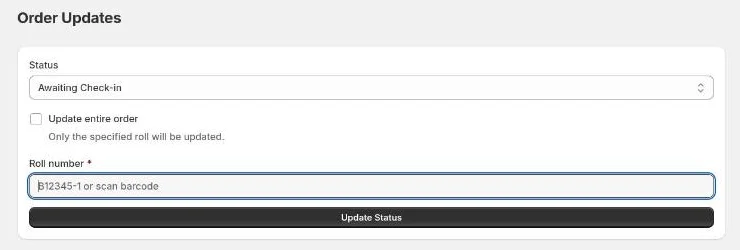
Updating one roll
- Choose the new Status.
- Leave Update entire order unticked.
- Scan the roll's label, or type its number, e.g.
B12345-1, into Roll number. A pre-printed label works too. - Press Enter or select Update Status.
A green banner confirms the change and lists every roll on that order with its current status. The one you just changed is in bold.
Updating a whole order
Tick Update entire order. The field changes to Order number. Scan any roll label from the order, printed or pre-printed, or type the order number. All of its rolls move to the selected status.
Things to know
- The status stays selected between scans, so you can scan a stack of rolls in a row.
- Changes are credited to whoever is signed in, and they count on Productivity.
- When all of an order's rolls reach a status, the order moves with them.
- If the new status is the shop's fulfillment status, the order is marked fulfilled in Shopify.
- A customer email set up for the new status is sent automatically.
- Moving to an earlier status asks you to confirm first. See Moving a status backward.
- An order that's Changed in Shopify must be synced first. See Syncing with Shopify.
Messages
| Message | Fix |
|---|---|
| Roll "…" not found | Check the number, or tick Update entire order if you typed an order number. |
| Order "…" not found | Check the number. |
| Order "…" has no rolls | It hasn't been checked in. Use Check In. |
| Status and identifier are required | Choose a status and enter a number. |