Logging in
Twin Check'n has two logins. The first is your normal Shopify admin login. The second is your personal staff account, which records who did what on every order.
Why there's a second login
Several people often share one Shopify admin login at the lab. Your staff account puts your name on each check-in, scan and status change, and that's what the Productivity reports count.
Signing in
- Open Shopify admin and choose Apps → Twin Check'n.
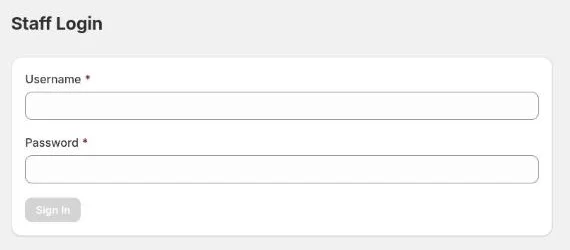
- The Staff Login screen appears. Enter your Username and Password.
- Select Sign In. The app menu appears on the left.
You stay signed in for 12 hours from your last action. Every time you use the app, the timer resets.
Signing out
At the bottom of the app menu, select your username (log out). Always sign out before someone else uses the computer, or their work gets recorded under your name.
First-time setup (admins)
A shop with no staff accounts shows Create First Admin instead of the login. Pick a username and password, confirm the password, then select Create Admin & Sign In. After that, add everyone else from the Staff page.
Rules for usernames and passwords
- Usernames: 2–32 characters: lowercase letters, digits,
_,.or-. - Passwords: at least 8 characters.
Problems
| Message | What it means |
|---|---|
| Invalid credentials | The username or password is wrong. Usernames are lowercase. |
| Passwords do not match | The two password fields on the first-admin screen differ. |
| Admin only | That action needs an admin account. Ask an admin. |