Order Forms
Order Forms prints the paper forms that travel with an order and go on the shelf with the finished film. Scan one roll from each order you want, and you get a single PDF with one page per order.
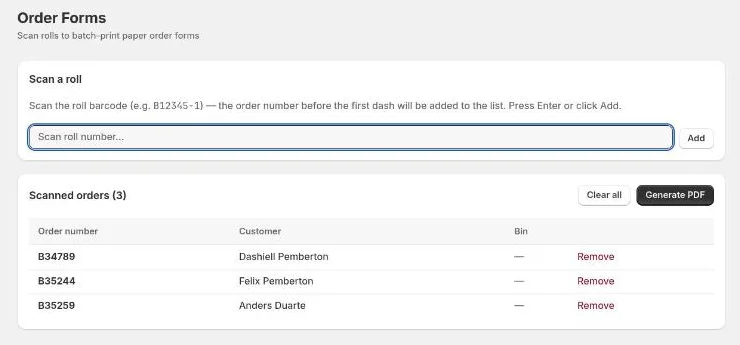
Printing a batch
- Scan any roll label from an order, e.g.
B12345-1, into Roll scan. The order number is taken from the part before the first dash. A pre-printed label finds its roll's order too. - Press Enter or select Add. The order appears under Scanned orders with its customer and bin.
- Repeat for each order in the batch.
- Select Generate PDF and print it.
Select Remove on a row to drop one order, or Clear all to start over.
An order with too many rolls for one page carries on onto a second page. Page breaks fall between rolls, never through one, and each page of a multi-page form is marked at the bottom, e.g. B12345 — page 2 of 2, so a loose sheet can be matched to its order.
Bins
Printing an order's form assigns it a storage bin, the shelf number it goes into, but only once the order is ready for the shelf. The Bin column and the bin box on the form show one of:
| Shows | Meaning |
|---|---|
| A number | The order's bin. It appears on the order everywhere in the app. |
| SHIP | The order is being shipped. Shipping orders never get a bin. |
| NOT READY | The order's status isn't one of the bin-eligible statuses yet. Reprint the form once it's ready for the shelf to get a bin. |
| — | Bin storage is turned off. |
Once an order has a bin, it keeps it. Reprinting the form shows the same bin, so the paper always matches where the order sits. See Pick Up for how bins are freed.
The checklist in the bin box
If an admin has set up an Order Form Checklist in Settings → Order Form, the bin box also lists the extra jobs the order needs before it leaves, each with a tick box. For example, 🎞️ Archival Sleeves or 🚚 Shipping. Tick them off as you go.
Messages
| Message | Meaning |
|---|---|
| … already in list | That order is already in the batch. |
| Order … not found | Check the roll number. |
| Printed without a bin (NOT READY): … | Those orders aren't at a bin-eligible status yet. Reprint them when they're ready for the shelf. |
| Every bin is at capacity | Those orders went into the least-full bin, over its capacity. |