Checking in an order
Check-in is the moment film arrives at the lab. It turns a Shopify order into individually tracked rolls, prints a barcode label for each roll, and marks the order Received and Checked In.
Before you start
- Sign in with your own staff account. Check-in is credited to whoever is signed in.
- Have the label printer on and loaded. If it doesn't print, see Label printing.
- An admin must have set up product tags in Settings. Until they do, you'll see "Shop settings not configured."
Step by step
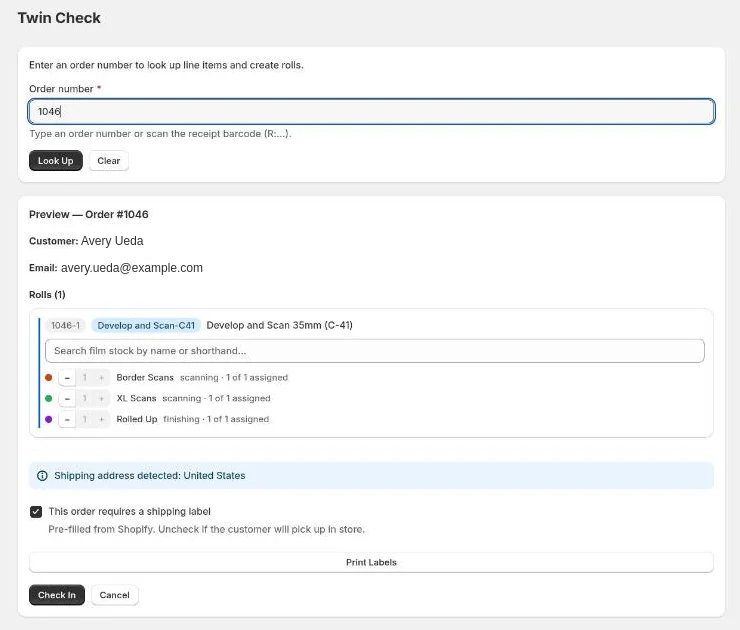
- Open Check In from the app menu.
- In Order number, type the number (
1001and#1001both work) or scan the barcode on the customer's receipt (it starts withR:). - Press Enter or select Look Up. The customer's name, email, order notes and one row per roll appear.
- For each roll, choose the Film stock. Type part of the name or its shorthand and pick it from the list. If the stock isn't in the list, see Film stocks that aren't in the list.
- If the order bought add-ons (rush, extra scans, and so on), use the − / + buttons on each roll to say which roll gets them. Rush is set roll by roll, so only the rolls you mark get the rush star on their label.
- Check This order requires a shipping label. It comes pre-filled from Shopify. Uncheck it if the customer will pick up in store.
- Select Print Labels & Check In. The labels print and the order is checked in at the same time. A green banner confirms the order and lists its rolls.
- Stick each label on its roll.
Printing and checking in are one step, so an order can't be left with printed labels but still Awaiting Check-in. If you already have labels for the order, select Check In on its own to check it in without printing.
To start over, select Cancel (after a look-up) or Clear (before one).
Film stocks that aren't in the list
For a stock the lab doesn't normally carry, type its full name in Film stock
and select Use "…" as a custom film stock. A Shorthand box appears
under it, pre-filled with a guess such as RS200 for Rollei Superpan 200.
Change it if you like. The shorthand is what prints on the roll label, up to 10
characters.
Custom stocks work the same way in Sync and Edit Order on the Orders page. To make a stock permanent, add it under Settings → Film Stocks.
Checking in with pre-printed labels
When the lab is out of label stock, an admin can turn on Pre-printed label mode in Settings. Then you stick a pre-printed barcode label on each roll instead of printing one.
- Look the order up as usual. Print Labels & Check In is hidden, and a Scan pre-printed labels box appears above the rolls with the cursor already in it.
- Take a label, stick it on the first roll, and scan it. It shows on that roll as a green Label 004521. The next scan goes on the next roll without a label, so work down the list in order.
- Scanned the wrong one? Select Remove next to it. That roll becomes the next one a scan fills.
- Fill in film stocks and add-ons, then select Check In. It stays greyed out until every roll has a label.
From then on, scanning the pre-printed label finds the roll anywhere a roll
number would: Status Flasher, Scanning, Order Updates, Orders, Pick Up and Order
Forms. You can type it without the leading zeros (4521 finds 004521). To fix
a label after check-in, use Add or Edit next to Label # on the roll's
card on Orders.
A label number can go on a new roll once its old order has left the lab, meaning it reached a status that frees its bin, such as Picked Up. Until then the number is in use.
| Message | Fix |
|---|---|
| "…" isn't a label number | That wasn't a pre-printed label. Labels are letters and digits only, with no dash. |
| Label … is already on B…-2 | You scanned it twice on this order. Use a new label. |
| Label … is already on B30001-2 (Developing) (in red on the roll) | That label is still on a roll in the lab. Select Remove and scan a different one. |
| Every roll already has a label | Remove the wrong label first, then scan again. |
What happens when you check in
- Each roll gets a number made from the order number plus a sequence, e.g.
1001-1,1001-2. - The order and its rolls are saved with the status Received and Checked In, credited to you.
- The Shopify order gets tagged with each roll number and with
Twin Check'n. With pre-printed labels, each label is tagged too, e.g.Label 004521. - If an email is set up for that status, the customer gets it.
If something goes wrong
"Order changed since you printed labels"
The order in Shopify no longer matches what you printed. Maybe a roll was added or removed, or Shopify was still catching up. The banner says what differs. The labels have printed, but the order isn't checked in yet.
- If the labels you printed are correct, select Check in anyway (override). Exactly the rolls you printed get saved.
- If not, select Cancel, look the order up again, and reprint.
"…has already been worked. Resolve it from the Orders page with Sync"
A roll that Shopify no longer lists already has work logged against it. Checking in would delete that history, so it's blocked. Open the order on the Orders page and use Sync.
Other messages
| Message | Fix |
|---|---|
| Order not found for "…" | Check the number. Only the digits matter; the # is optional. |
| No rolls found | The order's products aren't tagged as a film service. Ask an admin to check Settings. |
| Order … has already been checked in | It's done already. Find it on Orders. |
| No rolls to check in | Look the order up again and try once more. |